How to Create a Product Demo Video on AvataReel
Step by step: write a script with at least 3 sentences, attach the product photo and get a 9:16 video where the avatar talks and AI-generated scenes show the product in use.
In this guide you create a vertical video about your product. The avatar opens the video talking to the camera. In the middle, AI-generated scenes show the product in use. At the end, the avatar comes back and closes the speech. You need three things: a script with at least 3 sentences, a product photo and credits in your account.
The avatar does not hold the product at any point. The scenes are what show the product.
The examples below use a thermal bottle, with a three-sentence script.
Step 1: write the script
Open Create video and write what the avatar will say. If you want to start from the template, choose Product demo. Mention the product by name and say what it does. Short sentences work better in vertical video.
This thermal bottle keeps your coffee hot all day. It fits in your backpack and does not leak. Take yours to work tomorrow.
AvataReel splits the script into sentences. A sentence ends with a period, a question mark or an exclamation mark. The first sentence shows the avatar talking to the camera, and so does the last one. The product scenes cover the middle sentences, with the narration over them.
That is why the script needs at least 3 sentences. With 2 sentences, there is no room for the scenes: the video comes out with only the avatar talking, the product does not appear and you do not pay for the scenes.
Use the middle sentences for what the product does. They are the stretch where the product appears on screen. If you get stuck on the text, use Help me write below the script field. For opening ideas, read the guide on hooks without clickbait.
Step 2: attach the product photo
In the Product demo template, tap Attach product photo. If you started without a template, AvataReel may show the notice "Your script mentions a product. Want to show it in the video?" when the script talks about a product.
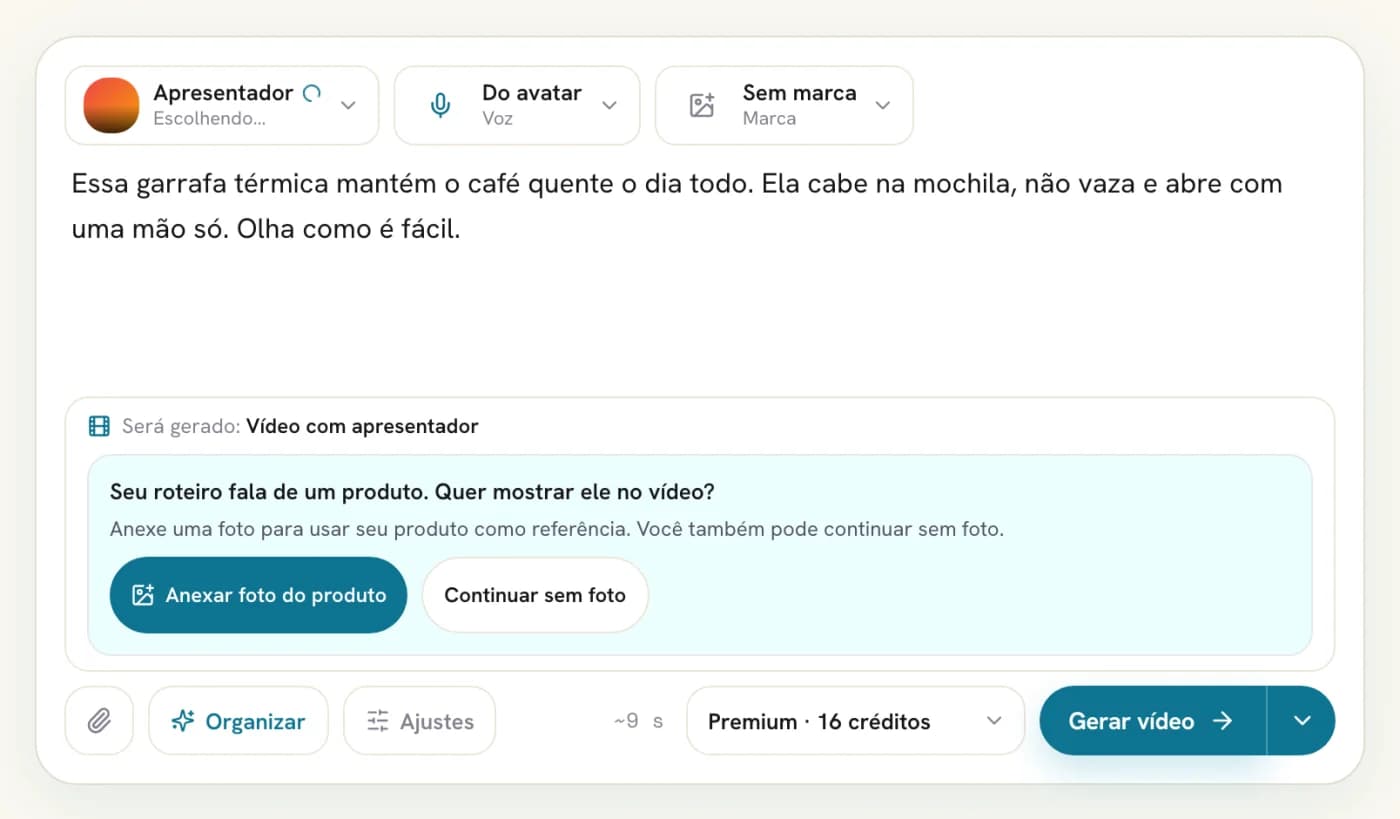
Upload a photo showing the whole product, a plain background and good light. The AI uses this photo as the reference to create the scenes. The more faithful the photo, the closer the product looks in the scenes. In the next post in this series, we show how to photograph the product at home.
Step 3: describe the use, if you want
With the photo attached, the How to show the product in use (optional) field appears. The AI already plans the scenes from the script and the photo. The field lets you suggest a simple use.
Good examples are short and visual:
- "hands pouring coffee from the bottle, on the kitchen table";
- "the bottle inside the backpack, next to a notebook";
- "the cap twisting and opening".
The AI treats the text as a suggestion. It also checks each scene and tries again when the product does not show up properly. Even so, review the video before you publish.
Step 4: choose the quality
In the selector next to the Generate video button, choose Economy or Premium. The product scenes are included on both qualities.
The credit total in the selector already includes the product scenes. At current prices, a 15-second video with the product costs 40 credits on Economy and 45 on Premium. A 30-second one costs 43 and 51.
Step 5: review the summary and generate
Tap Generate video. Before charging any credits, AvataReel shows the summary under Confirm your video.
Check the presenter, the quality, the estimated length and the Product-in-use scenes line, with the 34 credits for the scenes already included in the total. Tap Confirm and generate. If generation fails, the credits come back.
Step 6: download the video
During generation, the video page shows each stage. The product scenes add a few minutes to the wait. You can leave and come back later.
When the video is ready, download the MP4 on the video page. If you want to change the edit, open the editor. Later in this series, a post explains each AI editing adjustment.
Common mistakes
| Problem | Likely cause | What to do |
|---|---|---|
| The product does not appear in the video | Script with fewer than 3 sentences | Write at least 3 sentences, ending with a period, a question mark or an exclamation mark |
| The scenes show a different product | Dark or cropped photo, or one with several items | Upload a photo of the whole product, on its own, with a plain background |
| The scene does not match the speech | The middle sentence does not talk about the product | Use the middle sentences for what the product does |
Frequently asked questions
How much do the product scenes cost?
The product-in-use scenes add 34 credits to the video. A 15-second video with the product costs 40 credits on Economy and 45 on Premium. If the script has fewer than 3 sentences, the video comes out without the scenes and without that cost.
Does the avatar hold the product?
No. The avatar talks to the camera without the product. The product appears in the AI-generated scenes, between the first and the last sentence.
How long does it take for the video to be ready?
It depends on the length and the queue at the moment. The product scenes add a few minutes. You can leave the page while the video is generated and come back later under Videos.
What happens if generation fails?
The credits go back to your account. The confirmation screen tells you this before you generate.
Upload a photo, record your voice and type the script. Your first avatar is free.
Create my free avatar →