Product photo for AI video: how to shoot at home with your phone
The product photo is the AI's reference for creating the scenes of the product in use. See how to take a faithful photo at home, no studio needed.
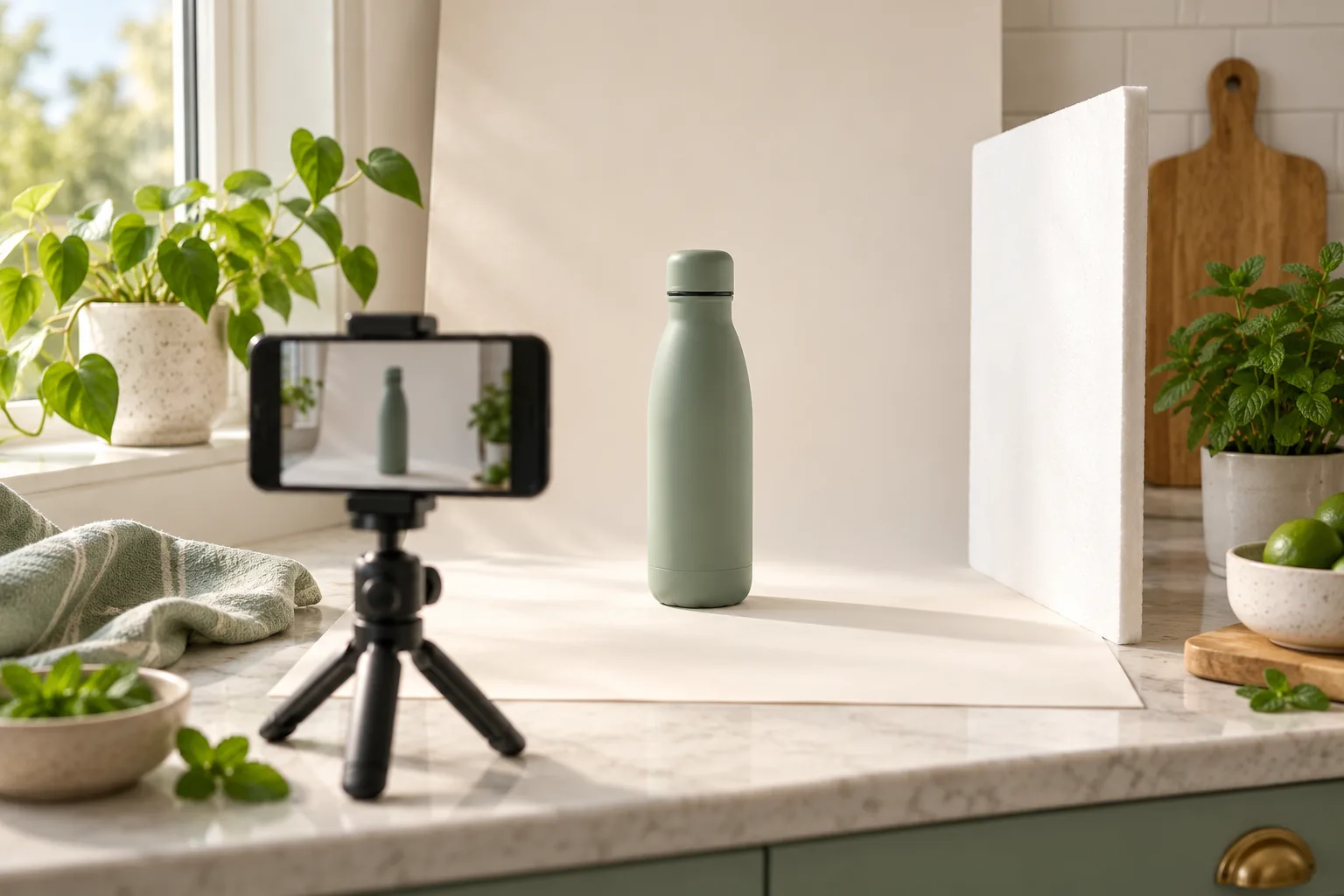
In AvataReel, the avatar talks to the camera without holding the product. Between the first and the last sentence of the script, AI-generated scenes of the product in use come in. The product photo is the reference for those scenes: it shows the AI what the product that will appear on screen looks like.
A bad photo produces a product that looks similar, but not identical. A good photo produces the product you sell. The good news: you do not need a studio. A phone, a window and a sheet of paper do the trick.
Why the photo matters so much
The AI does not know your product. It learns everything from the photo: shape, color, material, cap, label. Whatever does not show in the photo, the AI fills in on its own.
In the Product demo template, the photo is required. Without it, AvataReel asks for the photo before you continue. With a poor photo, the AI fills in what it cannot see, and the model, color and packaging may come out different.
For an ad, that is a problem. Buyers expect to receive what they saw. Showing a product different from the real one breaks that trust, as we explain in the guide on product video without exaggerated promises.
The 4 most common mistakes
The four photos below show the same bottle. Only the first one works as a reference.
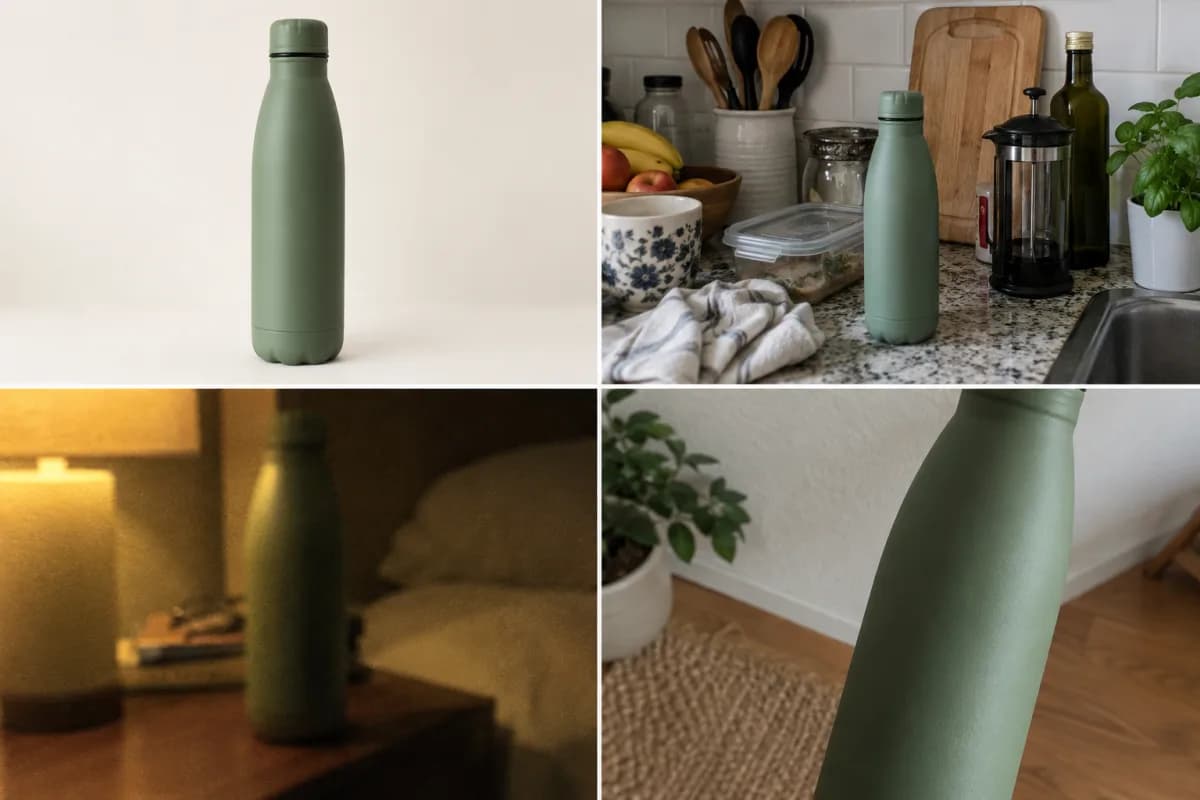
- Cluttered background. Other objects in the scene make the AI blend the product with what is around it.
- Low light. A dark photo loses color and texture, and the product comes out the wrong color.
- Shaky photo. Without sharpness, details like the cap and the label disappear.
- Cropped product. If the cap does not show, the AI invents one.
How to take the right photo in 5 minutes
Set up the background
Lean a large sheet of white or cream paper against the wall and let it curve down onto the table. This "infinity background" hides the line between the table and the wall. A poster board works.
Use window light
Place the product near a window, with the light coming from the side. Avoid direct sun, which creates hard shadows. If one side goes dark, prop a white sheet on the other side to bounce the light.
Turn off the ceiling light. Two lights of different colors give the product strange tones.
Frame the whole product
Leave a margin around the product. It should appear from the front, whole, with the label or the most recognizable part facing the camera. Hold the phone at the height of the middle of the product, not from above.
Focus and check
Tap the product on the phone screen to focus. After the shot, zoom in and check that the cap, edges and label are sharp. If they are not, rest the phone on something steady and shoot again.
Before you upload, run through the checklist
Use the list below with your photo open. Tick each item after checking.
Check each item after you review your photo.
One product, several photos?
When you create the video, you attach one main photo. It is the reference for all the scenes of the product in use.
Later, in the AI Editing editor, you can upload more product media: other photos or an MP4 video of up to 30 seconds. Each one becomes a product scene between the lines. Use different angles to show details, such as the open cap or the product next to something familiar to give a sense of size. The guide on how to show size, texture and details has more ideas.
In the editor's Framing option, choose Show whole product for photos with a margin, or Fill the scene for detail photos.
Summary
| Do | Avoid |
|---|---|
| Plain, single-color background | A counter with other objects |
| Window light, from the side | Direct sun or ceiling light |
| Whole product, from the front | Cropped cap or base |
| Check sharpness with zoom | Shaky or blurry photo |
| Current product and packaging | An old version of the product |
Attach the photo, write at least 3 sentences and get the video with scenes of the product in use.
Create video with product →Frequently asked questions
Can I use the photo from the website or marketplace?
You can, if it shows the whole product, on a plain background and in good resolution. Photos with text, badges or composites confuse the reference.
Can I upload a photo of a person holding the product?
Prefer the product alone. The person in the video is the avatar, and the photo only helps the AI understand the product.
What file formats does the editor accept for product media?
In the editor, you can upload PNG, JPEG or WebP, or an H.264 MP4 video of up to 30 seconds and up to 25 MB.
Upload a photo, record your voice and type the script. Your first avatar is free.
Create my free avatar →