AI-edited product video: from script to finished ad
AvataReel now shows your product in the video, creates a demo scene and delivers the finished edit, with a hook, captions and music. See how it works.
AvataReel now makes the video with your product from start to finish. You write the script and upload a product photo. The avatar talks about it, the AI creates a short scene of the product in use and puts the edit together: a title on the hook, captions, music and the product photo between the lines.
Before, the video came out ready to post, but raw. If you wanted an ad that looked like an ad, you had to open another editor. Now that step happens inside AvataReel.
What changed, in one sentence
You give a script and a photo. AvataReel gives back an edited 9:16 video, with the product on screen and in use.
Three parts work together:
| Part | What it does | Cost |
|---|---|---|
| Product photo | The avatar holds the product and the photo becomes the AI's reference | Included in the video |
| Video demo | A scene of up to 5 s with the product in use, inserted into the video | +8 credits |
| AI Edit | Hook, animated captions, music and product scenes | 0 credits |
1. AvataReel notices the script is about a product
Write the script as usual. When the text is about a product and you have not attached a photo yet, a notice appears: "Your script is about a product. Want to show it in the video?".
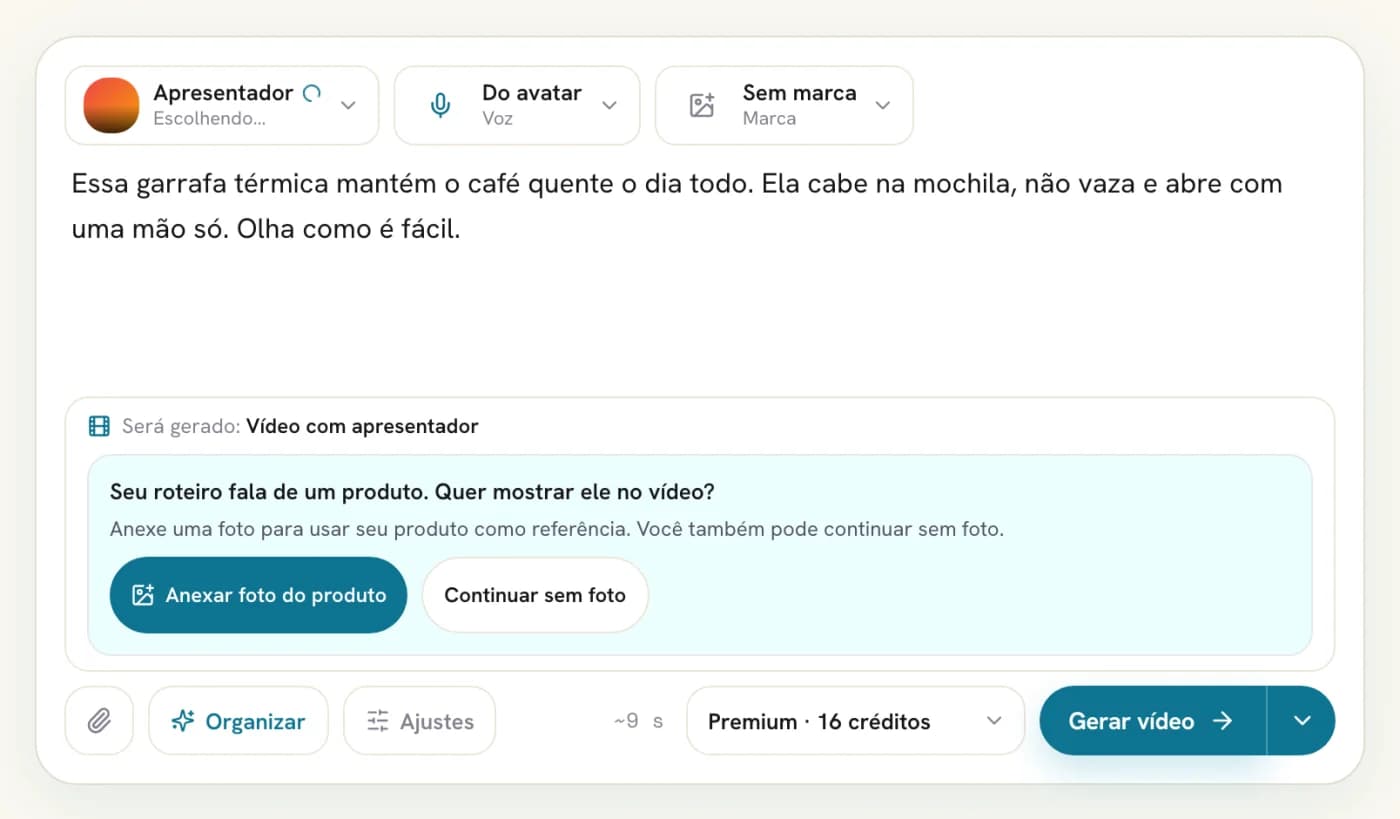
You choose between Attach product photo and Continue without photo. Nothing changes without your choice.
2. You decide if you want the demo scene
With the photo attached, the option Include video demo · +8 credits appears. Check it and the AI creates a short scene of the product being used: the lid opening, the cream coming out of the jar, the earbud going into the ear.
The scene goes into the video with no sound of its own. The narration stays the same, so the avatar keeps talking while the product appears. With a presenter, the scene comes in right after the opening.
The demo never turns on by itself just because you attached a photo. It is your choice, because it costs credits.
3. The video comes out edited
When the video is ready, the AI Edit starts on its own. It uses the generated video and the product photo to put together an ad version:
- An opening with a big title over the avatar in the first seconds.
- Animated captions written from the script, so product and brand names come out right.
- Background music and sound effects on scene changes.
- Product scenes between the lines, with the photo and the demo.
- The presenter in a circle in the corner while the product fills the screen.
Compare the same video before and after:
The original video stays saved. The edited version is a separate file that you download with one tap.
What if you want to change something?
The edit opens in a simple editor. There you change the visual style, the brand color, the caption style and the music. You can also move, delete or add scenes on the timeline, like a checklist with the benefits or a closing with the call to action.
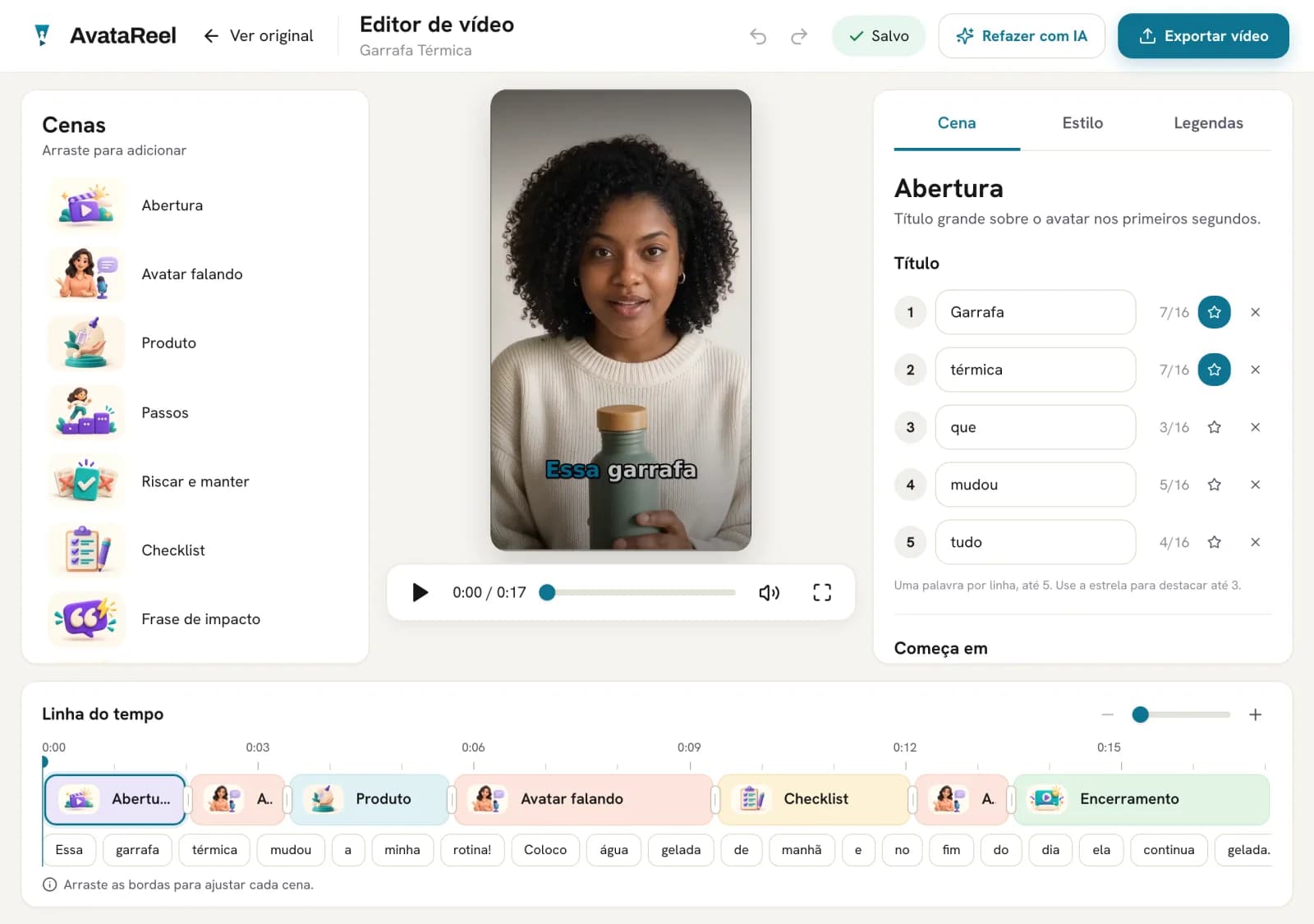
Exporting costs no credits. You can export in vertical, square or horizontal.
When to use it and when not to
Use the product video when the ad depends on seeing the product: cosmetics, bottles, earbuds, accessories, kitchen items. Showing the object in use answers the question "how does this work in practice?" before the person asks.
Skip the demo when the video is about a service, an idea or an offer. In those cases, the avatar talking straight to the camera is usually enough.
Three limits to know first:
- The product in the video exists in both qualities. Economy and Premium both show the product; only the video resolution changes.
- Without a photo, the demo product is made up. The AI creates something similar to the script. To show what you sell, attach the photo.
- The scene is short and single. One demo of up to 5 s per video. The AI interprets the action, so review the result before you publish.
To review calmly, use our AI video review checklist.
What comes in the next posts
In this series, we will show:
- the complete step-by-step, screen by screen;
- how to photograph the product so the demo stays faithful;
- everything the AI Edit does and how to adjust it;
- script ideas with a product for Black Friday.
Write the script, attach the photo and get the edited video.
Create product video →Frequently asked questions
Do I need a product photo to use the demo?
It is not required, but it is recommended. Without a photo, the AI creates a product similar to what the script describes, and the model, color and packaging may come out different from what you sell.
How much does the demo scene cost?
The demo scene costs 8 extra credits per video. The amount shows in the total before you confirm, and the credits come back if the generation fails.
Does the AI Edit cost credits?
No. The first export of the edit starts on its own and is free. New exports in the editor also cost 0 credits.
Does the product appear in every quality?
Yes. The product in the video is available in both qualities, Economy and Premium.
Upload a photo, record your voice and type the script. Your first avatar is free.
Create my free avatar →